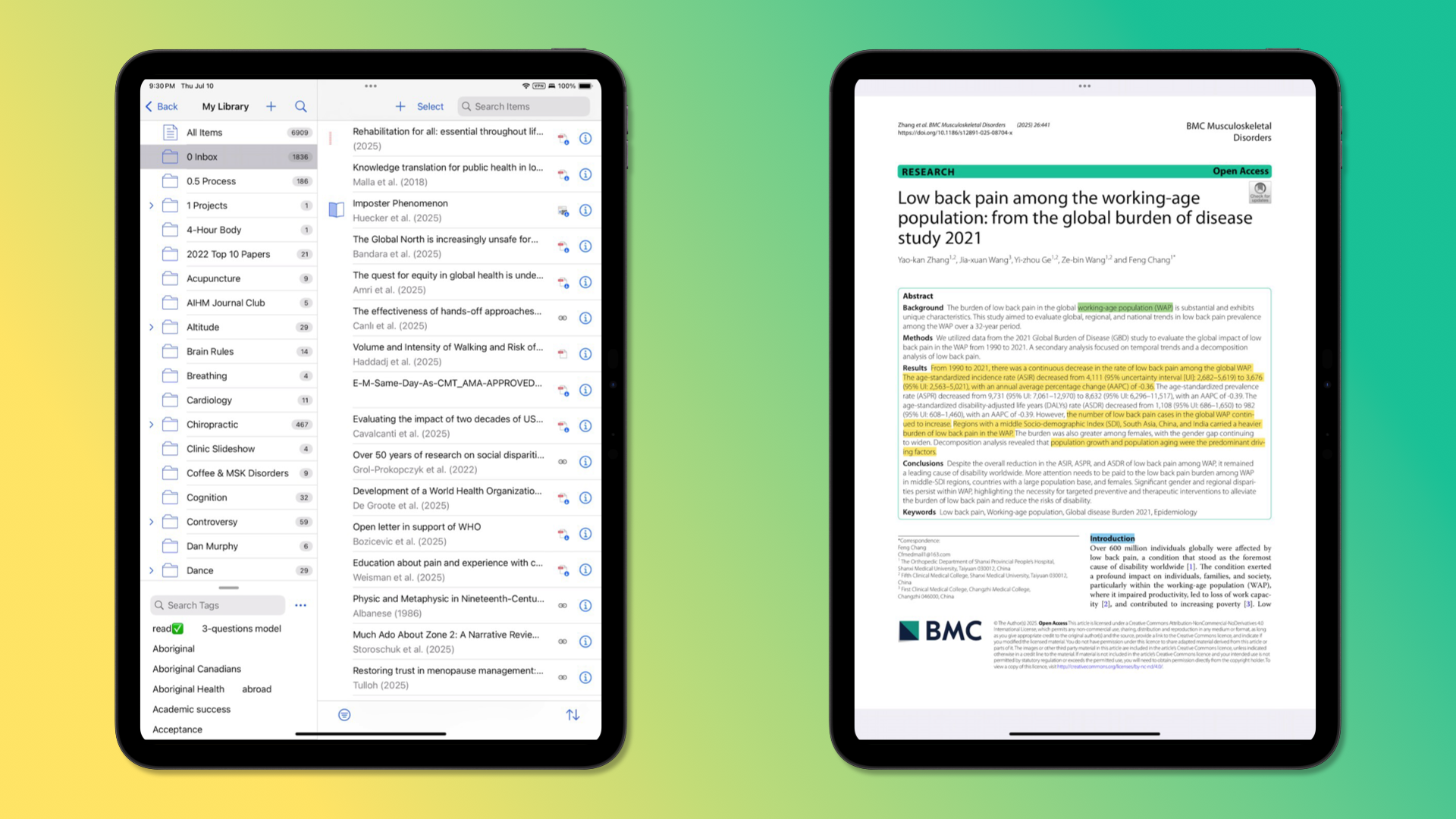
A Redditor asked for recommendations on the best device for reading his Zotero library on the go. I switched from Papers 3 to Zotero years ago and have since imported over 1,000 research articles to my personal research library. I thought I’d share my current setup and thoughts on other options to get started reading research in a digital ecosystem.
My current setup
I’ve been using an 11” iPad Pro with M1 for a few years now. I find I can read for much longer than on a computer screen. I think it’s due to the higher resolution (Liquid Retina) screen with 120Hz refresh rate (ProMotion).
The experience in Zotero and other reading apps is great. I often sit for hours reading and annotating articles at home or siping a latte in a café.
However, I do experience eye strain after too many hours of reading. There were occasions during my master’s degree program when I would print out the articles to give my eyes a break.
While I usually don’t scribble notes by hand, I still prefer to use the Apple Pencil for highlighting. The precision of the tip makes it more efficient to select text and gives me a sense of writing by hand.
Best, Good, Budget (but still great!) Recommendations
While the M1 iPad is no longer sold new, the M3 iPads have the same form factor and upgraded internals. They’re often available at a steep discount from Best Buy and Walmart.
But if you’re shelling out that much money for a new device, it’s worth getting the latest models, and the difference is worth it.
Best Tech — Apple M5 iPad Pro
While I haven’t put my hands on the latest generation M5 models, I briefly tested the previous gen 11” and 13” M4 iPad Pro (Amazon) in a store. They share the same form factor and display with slightly updated internals. I opened some research articles and noticed a significant improvement in the Ultra Retina XDR displays with variable refresh rate. The 11” M4 iPad Pro felt remarkably thin and light compared to my 11” M1 iPad Pro.
I’ve often wished I had the larger 13“ display so that PDFs of research articles more closely matched the 8.5x11” dimensions of a printed paper. Until now, the 13“ iPad Pro was too heavy, so I’ve stuck with the lighter but smaller 11” version. But today, the M4/5 models are now so incredibly thin and weigh only slightly more than the previous 11" that it could be time to consider the larger size.1
On the other hand, I was surprised at how clear and sharp the text was even on the smaller 11" M4 display. It almost made it so that the text was perfectly readable without needing the larger screen. Your preferences (and level of myopia 🤓) may differ.
If you’re looking for the best overall tablet and price is no issue, the latest iPad Pro is the way to go. But, if you’re not a financially irresponsible Apple fanboy like me, you may want to consider more affordable alternatives.
Best Value - Apple iPad Air
The latest iPad Air (Amazon) is the best value for most users while still providing a nice reading experience plus a sampling of the more advanced features from Apple. With the previous generation (but still more-than-capable) M4 chip, the iPad Air offers comparable performance and supports Apple Intelligence2 in the same form factor as the previous generation iPad Pro (M3 or earlier).
Like the iPad Pro, the iPad Air supports the Apple Pencil Pro (Amazon) or the Apple Pencil (USB-C) (Amazon) that can also be used for handwriting notes or drawing in apps such as the impressive Procreate.
While it lacks the XDR display with ProMotion, the Liquid Retina display still offers crisp text with an anti-reflective coating and improved colors over cheaper models.
Budget Pick - Apple iPad 11th gen. with A16
To be honest though, if you’re on a tight budget or aren’t planning on doing much more than reading papers and watching Netflix, the 11th gen iPad with A16 chip (Amazon) is an incredible device for only $349 ($329 with education savings) $449 ($429 with education savings). It has nearly the same screen as the iPad Air with slightly less powerful internals. While it doesn’t support the Apple Pencil Pro with additional controls and features for artists, it does support the Apple Pencil (USB-C) and Apple Pencil (1st generation), which allows you to do all of the highlighting, handwriting, or drawing that would be needed for annotating research.3
I recently bought one for each of our kids to use on a long flight. I took a few minutes while setting them up to test Zotero on an entry-level device. The user experience felt nearly indistinguishable from my M1 iPad Pro. I was able to download my research library to read and annotate just fine.
Storage
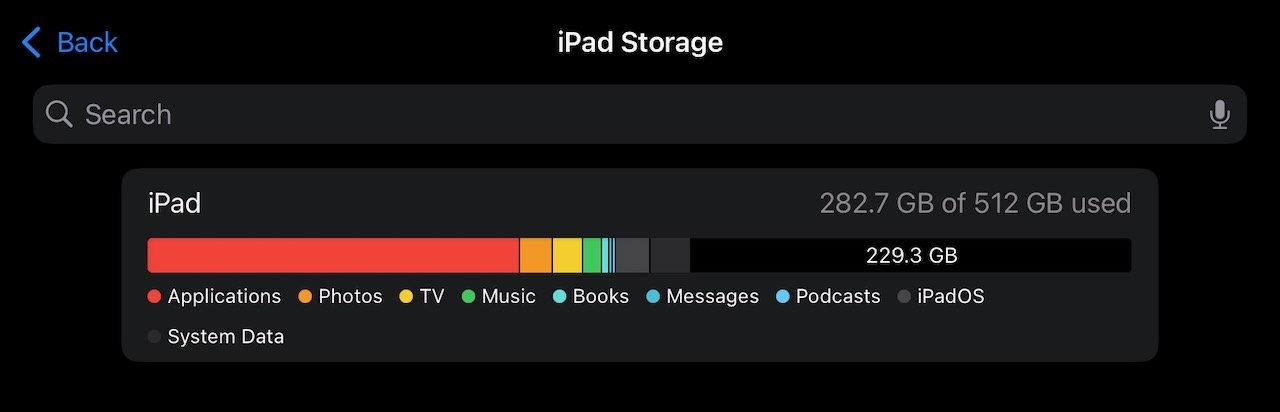
iPad models now start at 128 GB of storage (iPad Pro starts at 256 GB). This is enough to hold thousands of PDFs, hundreds of books, and enough HD movie downloads to keep you busy on a long-haul flight.
But If you’re like me and hate to feel limited, it’s worthing bumping up the internal storage for additional headroom (unlike some other tablets, you can’t expand the storage later as there is no SD card slot).
I have 512 GB on my iPad Pro, and even with gigabytes of home video footage, a decade of photos, hundreds of Kindle books, and my YouTube Watch Later playlist, I still have plenty of storage left to fit my entire Zotero library with room to spare.
Cloud Storage
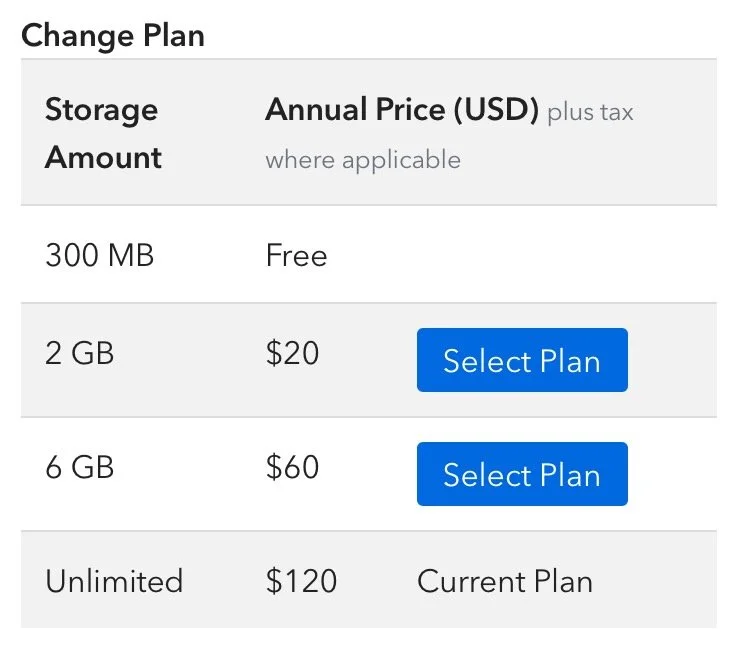
Speaking of which, while you’ll be reading on iPad, you’ll probably want to sync your articles with your laptop or other devices. Zotero offers 300 MB of cloud storage for free. You can purchase additional storage for an annual subscription.
My entire library of over 7,000 items is nearly 10 GB of storage. Unless you’re a compulsive digital hoarder like me, you’ll be fine with 2 GB ($20/year) or less.
If you’re a bit more technical, there are a number of ways to set-up free cloud storage for Zotero using 3rd-party services (and some configuration).
iPad Accessories
As I’ve mentioned multiple times, the Apple Pencil is a nice addition to any iPad, though not necessary.
While I prefer using iPad as a reading device, you can also use it for other computing needs. It’s great for browsing, watching videos, writing, and email. But for me to feel like I’m getting real work done, I have to use a keyboard.
Apple makes keyboard-case combinations called Magic Keyboard for iPad (Amazon) in a few styles (be sure to select the right version for your device model and size). While these devices are technically and aesthetically impressive, I find that they add too much weight and bulk to a device that I want to hold in my hands and slip into a bag—not to mention an eye-blinking price tag of up to $349. 🤑
While iPad will work with any external Bluetooth keyboard, I maintain that the best keyboard is the standalone Magic Keyboard (Amazon (I prefer the smaller one without a numpad so that it is compact, though the version with TouchID is a nice feature if you’re going to use it with a Mac).
Of course, if you’re using a keyboard you’ll need something to keep the iPad upright. I prefer the minimal folio-style case that attaches magnetically to the back. Apple’s version is quite expensive, but I’ve had good experiences with less expensive 3rd-party versions (like this one on Amazon].
eInk Displays
As great as iPad is, I still yearn for a more paper-like reading experience. I absolutely love reading on my Kindle Paperwhite. There’s something about the passive e-ink display that doesn’t fatigue my eyes like a backlit LED does. If only there were a device with a much larger display to fit full-size PDFs.
I’ve considered the Remarkable tablet, but it doesn’t support installing 3rd-party apps. I am now leaning more towards the Daylight DC-1, which runs the Android OS allowing apps from the Google Play Store, including Zotero and Obsidian. It looks like the perfect combination of features and tech for reading and deep focus.
While technically not eInk, the DC-1 display provides a similar experience as a Kindle display but with the responsiveness of an iPad. The amber hue and flicker-free refresh rate also promises to reduce eye strain when using it for longer reading sessions or late into the night.
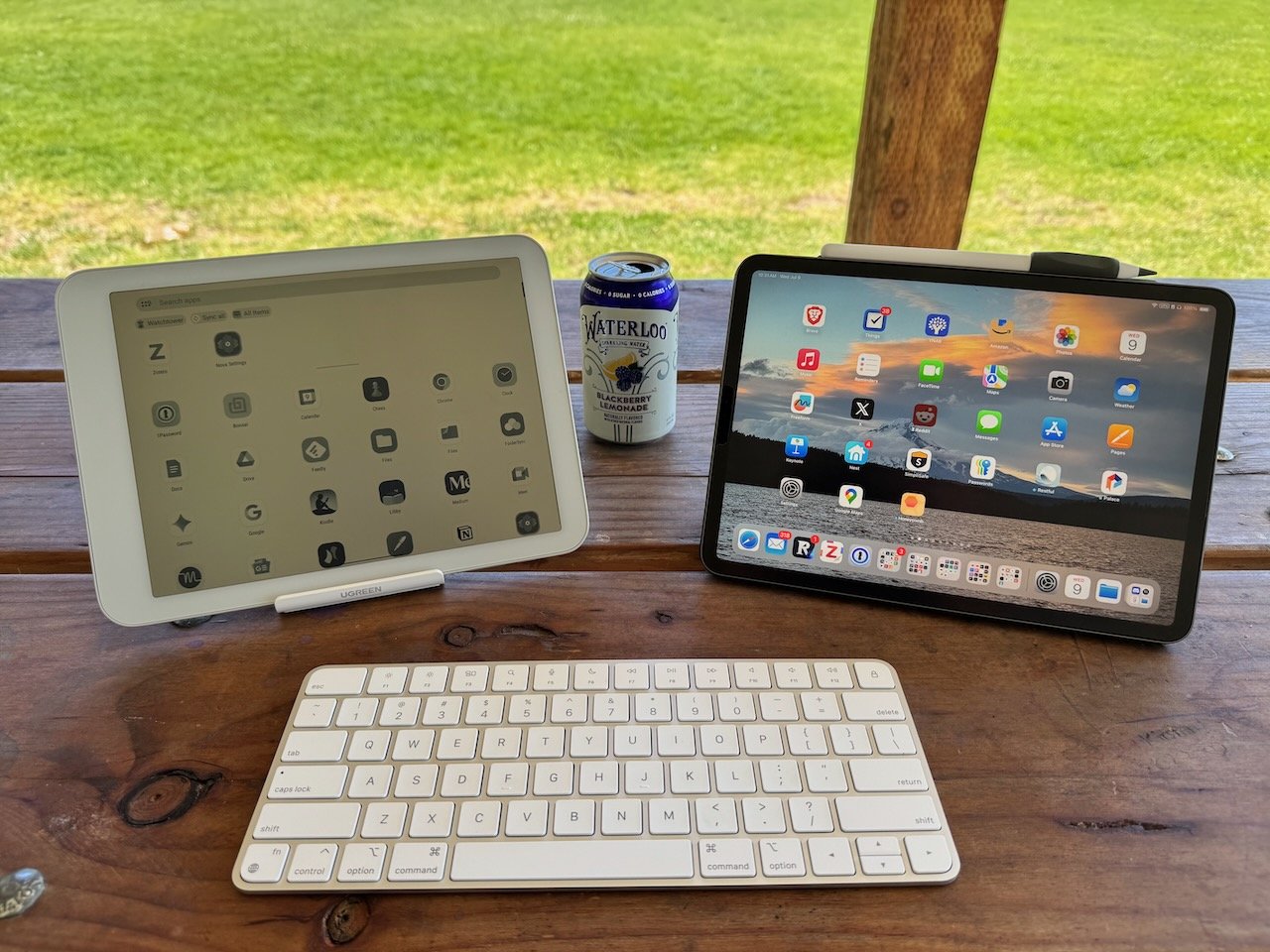
I used a DC-1 for a few weeks and plan to share my thoughts once I’ve had a chance to write it up.
If price is not an issue, you can also opt for the nano-texture glass on an iPad Pro. This special etching promises even less glare than the standard anti-reflective display. It is particularly helpful where color accuracy is crucial (a.k.a. not just reading text) or in environments with harsh lighting (say, poolside at the Copa Cabana). Combined with some display settings adjustments, the nano-texture display can feel very close to an eInk experience. It costs an extra $100 but is only available on the already more expensive 1 TB and 2 TB models.
Other Apps
Zotero serves as my collection of articles I want to keep on hand for easy access and referencing. But it doesn’t help you find which articles to read in the first place.
I use a number of other apps to search for research, browse journals, and follow certain topics or authors. I’ll write another post detailing how I use the various apps, but here is a shortlist:
How do you read research?
Zotero on iPad is the method I’ve settled on for reading research articles, but there are many other options. I’d love to hear how you like to read and annotate papers. Leave a comment below.
-
There’s something about the dispersion of weight over a greater surface area that makes the new form factor balance nicely in the hand, and feel lighter even if the 13” M4 has a few grams more than the previous generation. ↩︎
-
Still in beta, Apple Intelligence has been a source of criticism and embarrassment for Apple. While still far behind the bigger names in LLMs and generative AI, it still offers a few helpful features, like Writing Tools and Image Playground. ↩︎
-
The entry-level iPad also supports the original Apple Pencil, but don’t bother. It only connects and charges via the outdated Lightning connector, requiring an adapter. It also doesn’t attach magnetically for storage. ↩︎